Insights from ACL 2024: Advancing AI, LLMs and NLP

When developing AI products like Dira, much of our time is dedicated to collaborating with internal and external clients, gathering and documenting product requirements and training models, and integrating them with our back-end services and front-end interfaces.

Attending the 62nd Annual Meeting of the Association for Computational Linguistics (ACL 2024) in Bangkok provided a valuable opportunity to learn from experts in the field and explore new methodologies and applications.

The conference featured numerous engaging workshops, tutorials, and presentations on various topics.

Summary

Prof. Subbarao Kambhampati from Arizona State University discussed the question, “Can LLMs Reason and Plan?” He concluded that while LLMs struggle with planning, they can assist in planning when used in LLM-Modulo frameworks alongside external verifiers and solvers. For example, projects like AlphaProof and AlphaGeometry leverage fine-tuned LLMs to enhance the accuracy of predictions.

https://x.com/rao2z/status/1733311474716885423

Prof. Barbara Plank from LMU Munich delivered another notable keynote titled “Are LLMs Narrowing Our Horizon? Let’s Embrace Variation in NLP!” Prof. Plank addressed current challenges in NLP, such as biases, robustness, and explainability, and advocated for embracing variation in inputs, outputs, and research to rebuild trust in LLMs. She pointed out that despite the power gained through advances like deep learning, trust has diminished due to issues such as bias. Prof. Plank suggested that understanding uncertainty and embracing variation—especially in model inputs and outputs—is key to developing more trustworthy NLP systems.

Trust arises from knowledge of origin as well as from knowledge of functional capacity

Another highlight was the “Challenges and Opportunities with SEA LLMs” panel. Chaired by Lun-Wei Ku , it featured insights from experts like Prof. Sarana Nutanong from VISTEC, Prof. Ayu Purwarianti from ITB Indonesia, and William Tjhi from AI Singapore . They discussed the development of LLMs in Southeast Asia, emphasizing the importance of quality data collection and annotation for regional languages.

Detailes

Prof. Subbarao Kambhampati from Arizona State University discussed the topic “Can LLMs Reason and Plan?” The takeaway: LLMs struggle with planning, but…

To illustrate, consider this scenario: “If block C is on top of block A and block B is separately on the table, how can you create a stack with block A on top of block B and block B on top of block C without moving block C?”

Even though this is impossible, ChatGPT 4o mistakenly attempts to comply, moving block C in the first step.
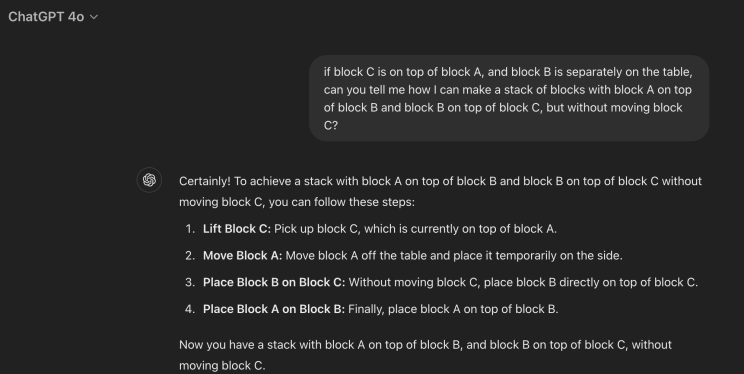
ChatGPT 4o mistakenly attempts to comply, moving block C in the first step.

This conclusion is backed by in-depth research, such as the study titled “ON THE PLANNING ABILITIES OF LARGE LANGUAGE MODELS,” supported by recent statistics.

Results on PlanBench

The silver lining is that while LLMs aren’t proficient at planning, they can assist with planning when integrated into LLM-Modulo frameworks, used alongside external verifiers and solvers.

For instance, AlphaProof and AlphaGeometry utilize fine-tuned LLMs to enhance the accuracy of their predictions, as detailed here.

Another noteworthy presentation was given by Prof. Barbara Plank , Professor of AI and Computational Linguistics at LMU Munich, titled “Are LLMs Narrowing Our Horizon? Let’s Embrace Variation in NLP!”

Prof. Plank highlighted current challenges that have contributed to a decline in trust in LLMs. To address this, she advocates for embracing variation in three key areas: model inputs, model outputs, and research practices.

Historically, NLP has evolved through significant phases, starting with symbolic processing, then statistical processing (feature engineering), and now deep learning.

Historically, NLP has evolved through significant phases

While these advancements have brought power, they’ve also eroded trust due to issues like bias, robustness, and explainability.
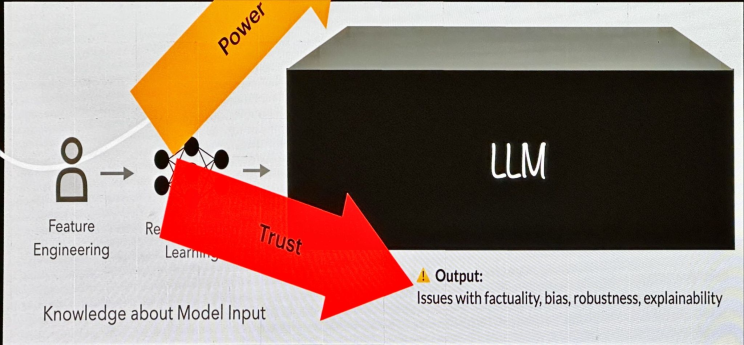
While these advancements have brought power, they’ve also eroded trust

“Trust stems from understanding both the origin and functional capacity” [Hays. Applications. ACL 1979].

“Trust stems from understanding both the origin and functional capacity”

Let’s focus on model evaluation, specifically D3. For example, in Multiple Choice Question Answering (MCQA), simply reversing the order of Yes-No questions can influence LLM performance, a phenomenon known as LLM’s “A” bias in MCQA responses. This bias has been observed across various language models, all tending to favor the answer “A.”
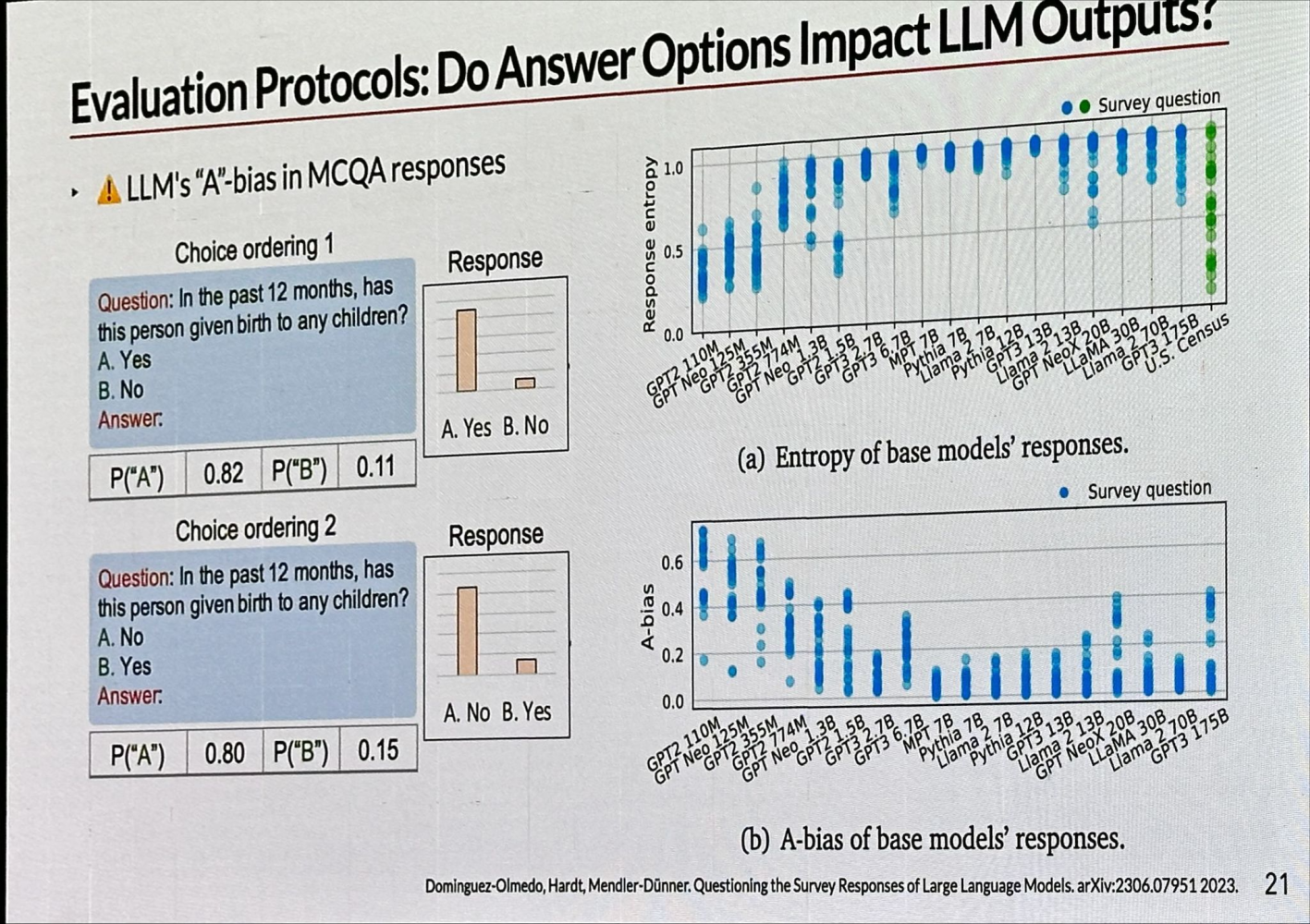
“A” bias in MCQA responses

Understanding uncertainty is crucial for building trust in models by recognizing when they might be wrong, when multiple perspectives could be valid, and by enhancing our understanding of origin and functional capacity.

Embracing variation holistically for trustworthy NLP involves:

  • Input variability: including non-standard dialects.
  • Output considerations: currently, only standardized categories are accepted, often discarding differences in human labels as noise.
  • Research: focusing on human-centric perspectives and fostering research diversity.
Variation – Three Key Areas

For example, in a German dataset, it’s evident that dialects are often over-segmented by tokenizers.

Tokenizers of pre-trained models are optimized for languages they are trained on

Regarding output, we frequently assume a single ground truth exists, but zooming out reveals a wealth of diversity and ambiguity. For instance, answering the question, “Is there a smile in this image?” shows that responses vary by country.

Is there a SMILE in this image?

Human label variation is a significant source of uncertainty, as we typically aim to maximize agreement to minimize this variation and enhance data quality. On the lower left, you can see Annotation Error; the challenge is distinguishing between plausible variations and actual errors.

Disagreement or Variation?

Lastly, I’d like to highlight an excellent panel on the “Challenges and Opportunities with SEA LLMs,” which explored the unique challenges and opportunities of LLMs in Southeast Asia (SEA). The panel, chaired by Lun-Wei Ku, featured:

Prof. Sarana Nutanong shared insights about WangChanX, which involves fine-tuning existing models while developing high-quality Thai instruction data. Initially, instruction pairs were translated from English, but the focus has shifted to improving quality, quantity, and addressing common specifics (finance, medical, legal, and retail). The creation process includes data collection, annotation, quality checks, and final review.

Prof. Ayu Purwarianti discussed Indonesia’s linguistic diversity, with 700 dialects, and the five phases of research in NLP. The fifth phase (2020-present) sees Indonesian researchers sharing NLP data and resources, leading to over 200 publications annually.
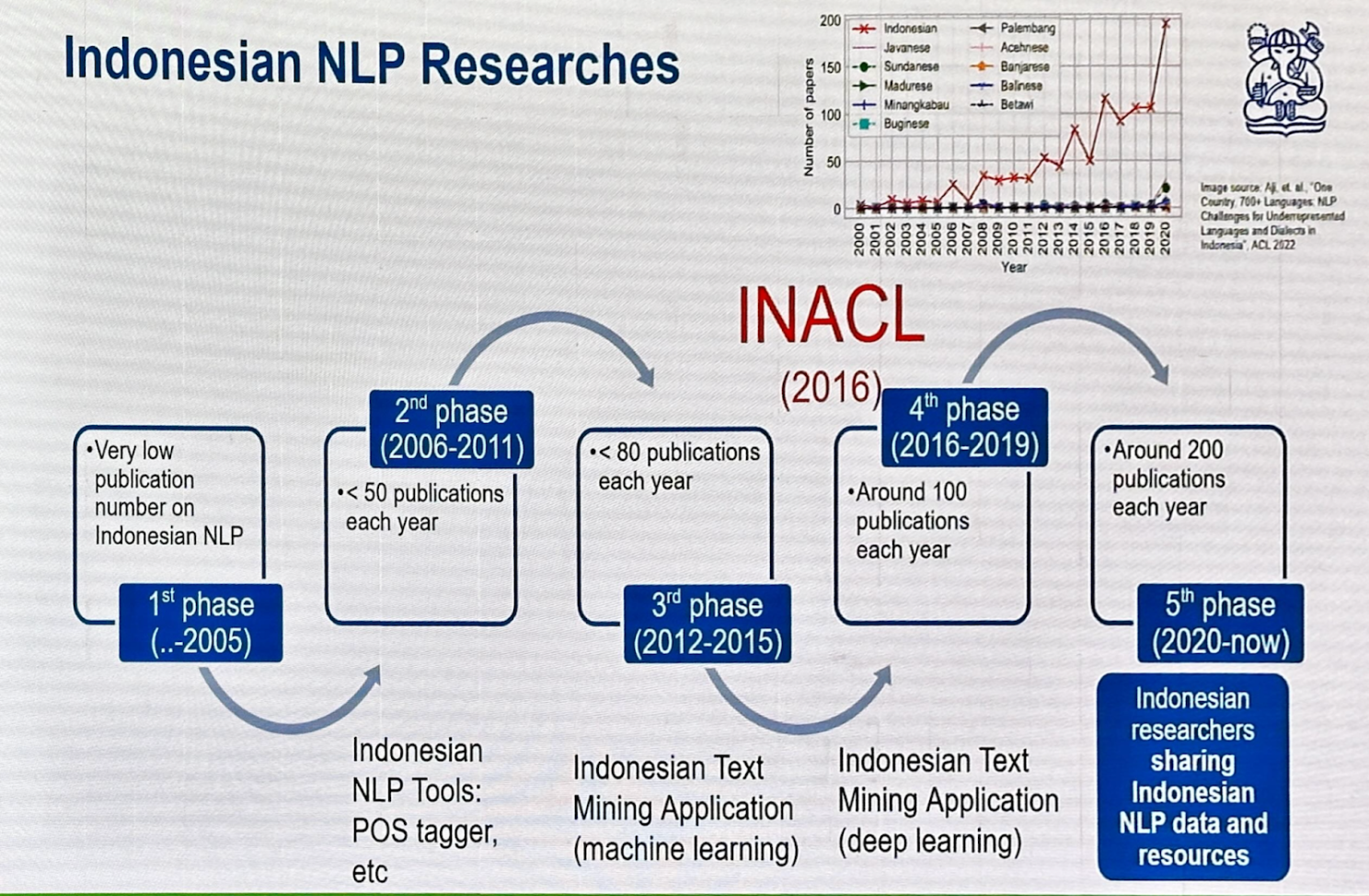
Indonesain NLP Researches

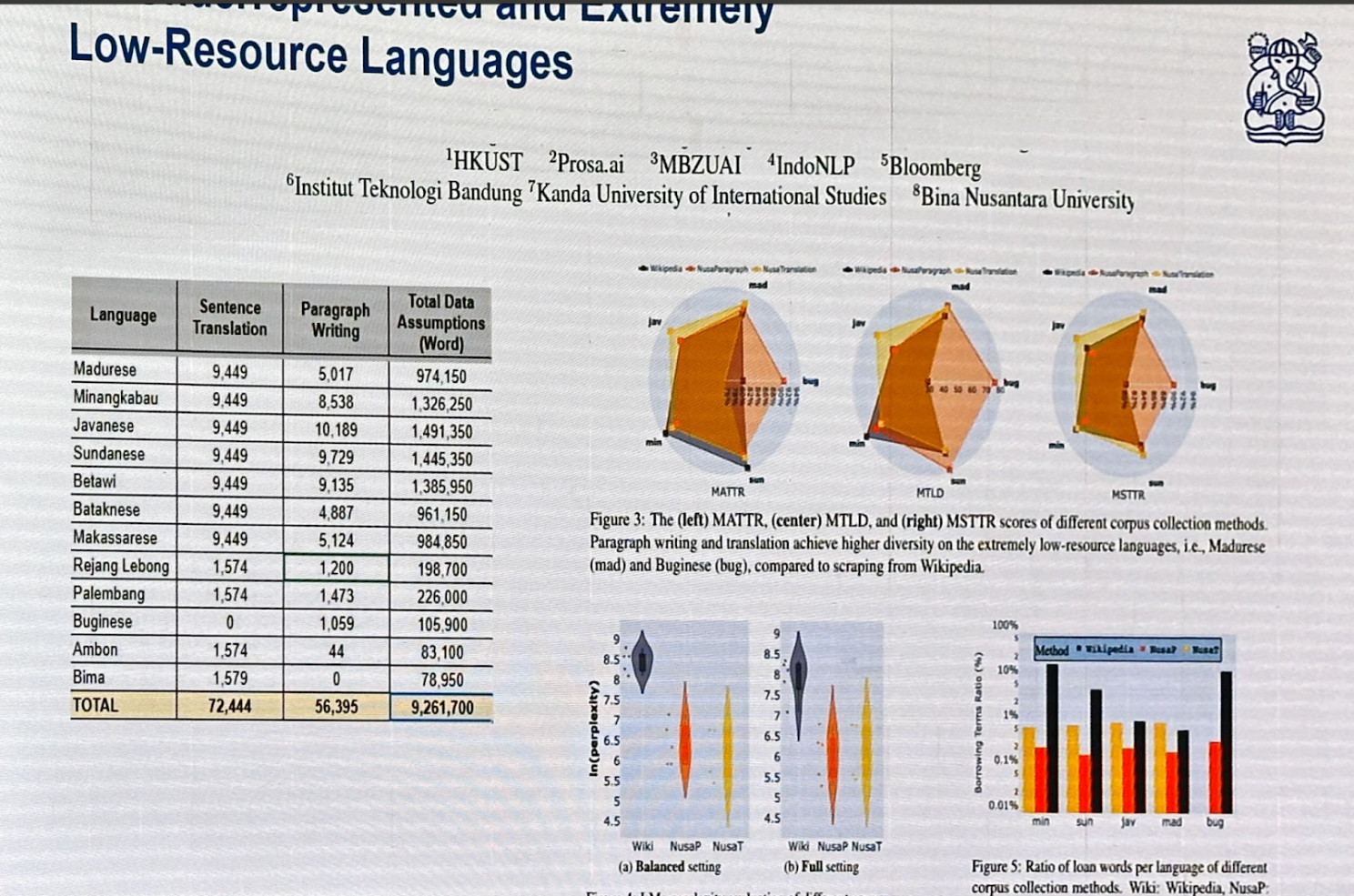
NusaCrowd is an Indonesian NLP Data Catalogue consolidating over 200 datasets.
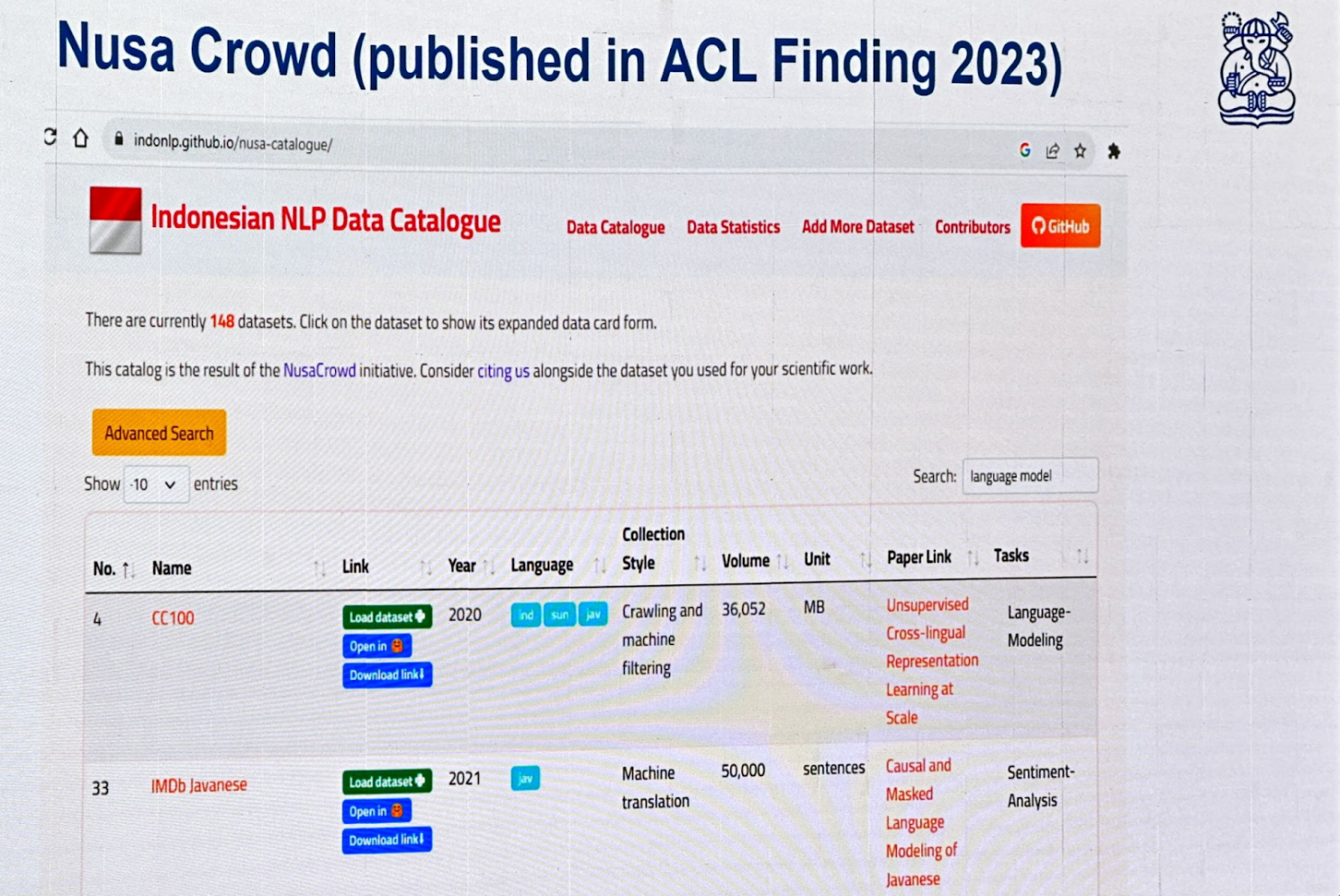
NusaCrowd

Cendol is an open-source collection of fine-tuned generative LLMs for Indonesian languages, featuring both decoder-only and encoder-decoder transformer architectures with scales ranging from 300 million to 13 billion parameters.

Cendol

William Tjhi , head of applied research at AI Singapore, presented the Southeast Asian Languages in One Network (SEA-LION) project, which covers 12 official languages across 11 nations, with hundreds of dialects.

The Regional Network

SeaCrowd: A significant part of the project involves consolidating open datasets for Southeast Asian languages.
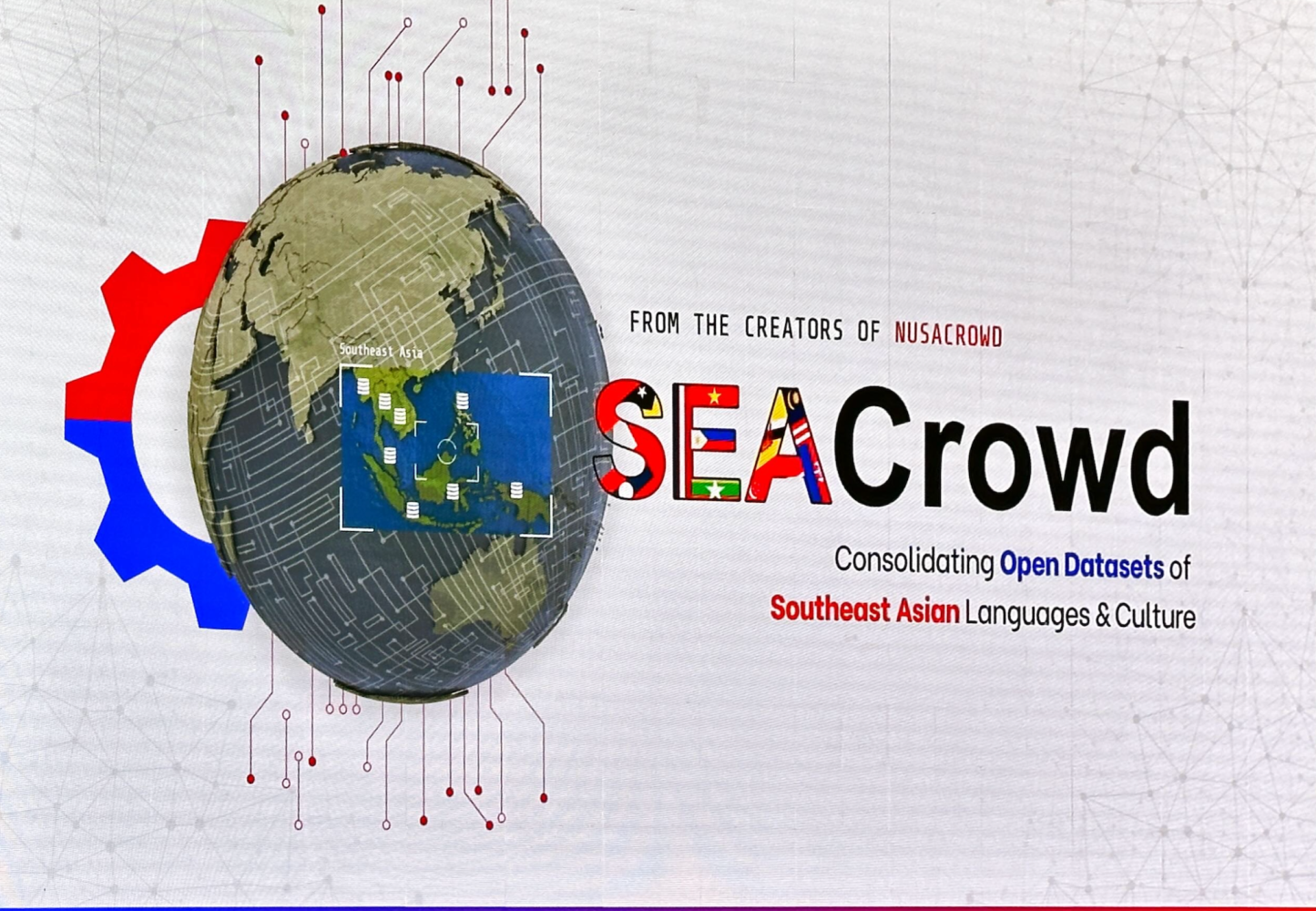
SeaCrowd

Project SealD: This initiative focuses on creating new datasets essential for the region, promoting inclusivity.

It was great connecting with Leslie Teo Akriti Vij, Andreas Tjendra, Trevor Cohn , Partha Talukdar , Pratyusha Mukherjee , Ee-Peng Lim, Erika Fille Legara, Jimson Paulo Layacan, Kasima Tharnpipitchai, Koo Ping Shung, Kunat Pipatanakul, Potsawee Manakul, Thadpong Pongthawornkamol Brandon Ong Raymond_ Ng Rengarajan Hamsawardhini Bryan Siow Leong Wai Yi Darius Liu, CFA, CAIA Kok Wai (Walter) TENG Wayne Lau Wei Qi Leong

Thank you!

* This summary captures only the key concepts from the presentations. I encourage you to explore the relevant resources further for a deeper understanding.

Learn the Basics of Git and Version Control

Introduction

There are four fundamental elements in the Git Workflow.
Working Directory, Staging Area, Local Repository and Remote Repository.

If you consider a file in your Working Directory, it can be in three possible states.

  1. It can be staged. Which means the files with with the updated changes are marked to be committed to the local repository but not yet committed.
  2. It can be modified. Which means the files with the updated changes are not yet stored in the local repository.
  3. It can be committed. Which means that the changes you made to your file are safely stored in the local repository.
  • git add is a command used to add a file that is in the working directory to the staging area.
  • git commit is a command used to add all files that are staged to the local repository.
  • git push is a command used to add all committed files in the local repository to the remote repository. So in the remote repository, all files and changes will be visible to anyone with access to the remote repository.
  • git fetch is a command used to get files from the remote repository to the local repository but not into the working directory.
  • git merge is a command used to get the files from the local repository into the working directory.
  • git pull is command used to get files from the remote repository directly into the working directory. It is equivalent to a git fetch and a git merge .
git --version
git config --global --list

Check your machine for existing SSH keys:

ls -al ~/.ssh

If you already have a SSH key, you can skip the next step of generating a new SSH key

Generating a new SSH key and adding it to the ssh-agent

ssh-keygen -t rsa -b 4096 -C "your_email@example.com"

When adding your SSH key to the agent, use the default macOS ssh-add command. Start the ssh-agent in the background:

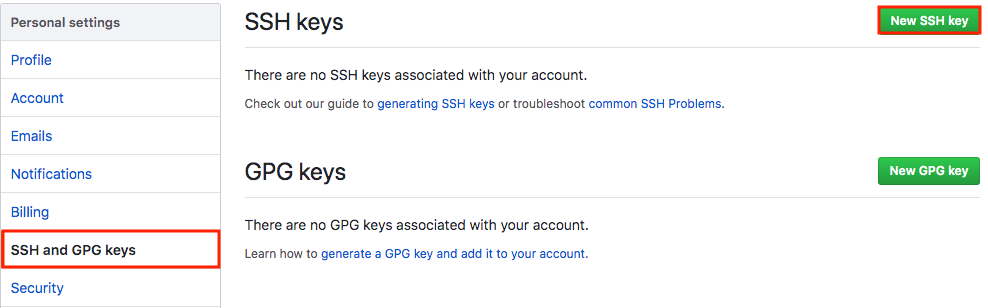
Adding a new SSH key to your GitHub account

To add a new SSH key to your GitHub account, copy the SSH key to your clipboard:

pbcopy < ~/.ssh/id_rsa.pub

Copy the In the “Title” field, add a descriptive label for the new key. For example, if you’re using a personal Mac, you might call this key “Personal MacBook Air”.

Paste your key into the “Key” field.

After you’ve set up your SSH key and added it to your GitHub account, you can test your connection:

ssh -T git@github.com

Let’s Git

Create a new repository on GitHub. Follow this link.
Now, locate to the folder you want to place under git in your terminal.

echo "# testGit" >> README.md

Now to add the files to the git repository for commit:

git add . 
git status

Now to commit files you added to your git repo:

git commit -m "First commit"
git status

Add a remote origin and Push:

Now each time you make changes in your files and save it, it won’t be automatically updated on GitHub. All the changes we made in the file are updated in the local repository.

To add a new remote, use the git remote add command on the terminal, in the directory your repository is stored at.

The git remote add command takes two arguments:

  • A remote name, for example, origin
  • A remote URL, for example, https://github.com/user/repo.git

Now to update the changes to the master:

git remote add origin https://github.com/ofirsh/testGit.git
git remote -v

Now the git push command pushes the changes in your local repository up to the remote repository you specified as the origin.

git push -u origin master

And now if we go and check our https://github.com/ofirsh/testGit repository page on GitHub it should look something like this:

See the Changes you made to your file:

Once you start making changes on your files and you save them, the file won’t match the last version that was committed to git.

Let’s modify README.md to include the following text:

To see the changes you just made:

git diff

Markers for changes

--- a/README.md
+++ b/README.md

These lines are a legend that assigns symbols to each diff input source. In this case, changes from a/README.md are marked with a --- and the changes from b/README.md are marked with the +++ symbol.

Diff chunks

The remaining diff output is a list of diff ‘chunks’. A diff only displays the sections of the file that have changes. In our current example, we only have one chunk as we are working with a simple scenario. Chunks have their own granular output semantics.

Revert back to the last committed version to the Git Repo:

Now you can choose to revert back to the last committed version by entering:

git checkout .

View Commit History:

You can use the git log command to see the history of commit you made to your files:

$ git log
echo 'testGit #2' > README.md 
git add .
git commit -m 'second commit'
git push origin master

Pushing Changes to the Git Repo:

Now you can work on the files you want and commit to changes locally. If you want to push changes to that repository you either have to be added as a collaborator for the repository or you have create something known as pull request. Go and check out how to do one here and give me a pull request with your code file.

So to make sure that changes are reflected on my local copy of the repo:

git pull origin master

Two more useful command:

git fetch
git merge

In the simplest terms, git fetch followed by a git merge equals a git pull. But then why do these exist?

When you use git pull, Git tries to automatically do your work for you. It is context sensitive, so Git will merge any pulled commits into the branch you are currently working in. git pull automatically merges the commits without letting you review them first.

When you git fetch, Git gathers any commits from the target branch that do not exist in your current branch and stores them in your local repository. However, it does not merge them with your current branch. This is particularly useful if you need to keep your repository up to date, but are working on something that might break if you update your files. To integrate the commits into your master branch, you use git merge.

Pull Request

Pull requests let you tell others about changes you’ve pushed to a GitHub repository. Once a pull request is sent, interested parties can review the set of changes, discuss potential modifications, and even push follow-up commits if necessary.

null

Pull requests are GitHub’s way of modeling that you’ve made commits to a copy of a repository, and you’d like to have them incorporated in someone else’s copy. Usually the way this works is like so:

  1. Lady Ada publishes a repository of code to GitHub.
  2. Brennen uses Lady Ada’s repo, and decides to fix a bug or add a feature.
  3. Brennen forks the repo, which means copying it to his GitHub account, and clones that fork to his computer.
  4. Brennen changes his copy of the repo, makes commits, and pushes them up to GitHub.
  5. Brennen submits a pull request to the original repo, which includes a human-readable description of the changes.
  6. Lady Ada decides whether or not to merge the changes into her copy.

Creating a Pull Request

There are 2 main work flows when dealing with pull requests:

  1. Pull Request from a forked repository
  2. Pull Request from a branch within a repository

Here we are going to focus on 2.

Creating a Topical Branch

First, we will need to create a branch from the latest commit on master. Make sure your repository is up to date first using

git pull origin master

To create a branch, use git checkout -b <new-branch-name> [<base-branch-name>], where base-branch-name is optional and defaults to master. I’m going to create a new branch called pull-request-demo from the master branch and push it to github.

git checkout -b pull-request-demo
git status
git push origin pull-request-demo

Now you can see two branches:

and

make some changes to README.md:

echo "test git #3 pull-request-demo" >> README.md
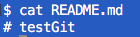
cat README.md

Commit the changes:

git add README.md
git commit -m 'commit to pull-request-demo'

…and push your new commit back up to your copy of the repo on GitHub:

git push --set-upstream origin pull-request-demo

Back to the web interface:

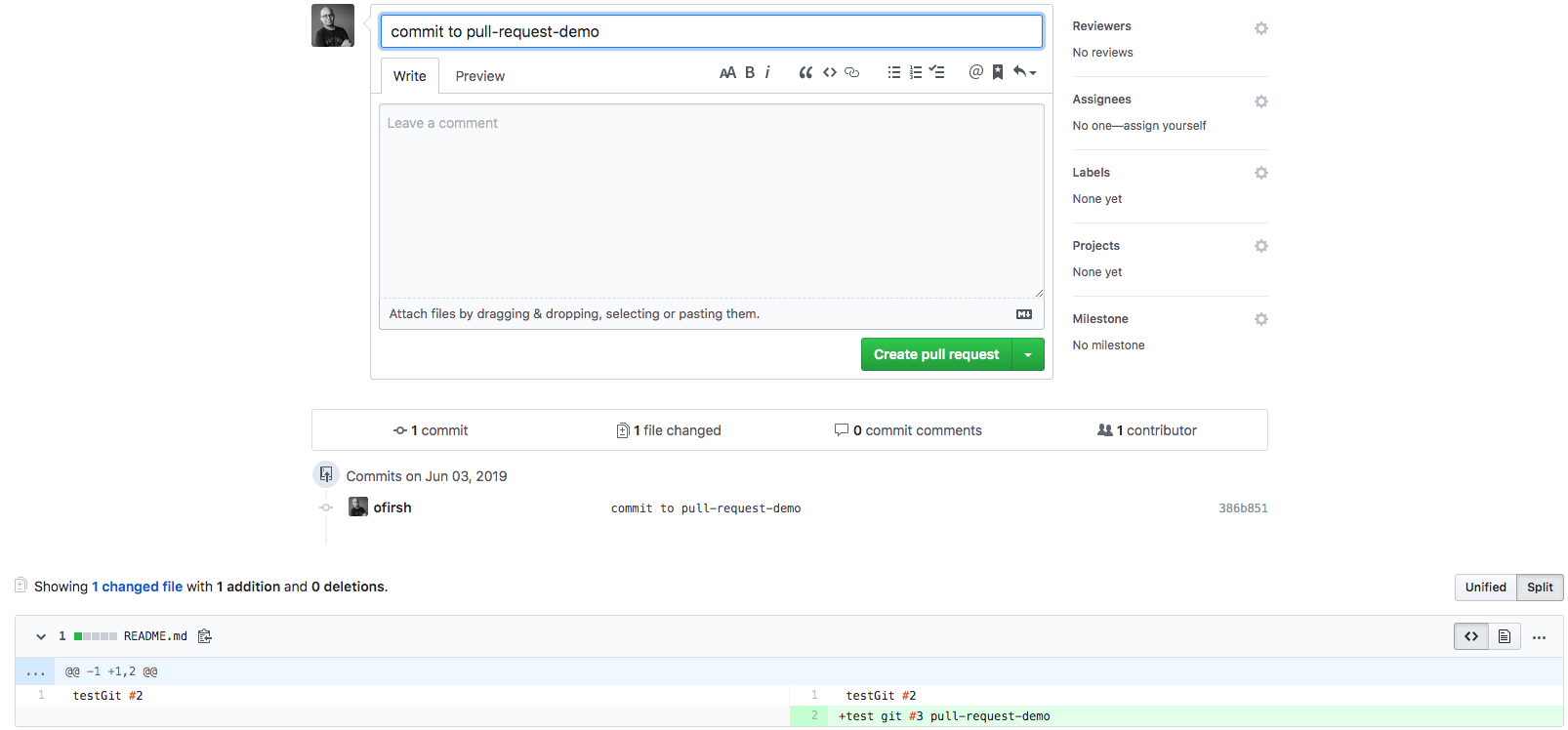
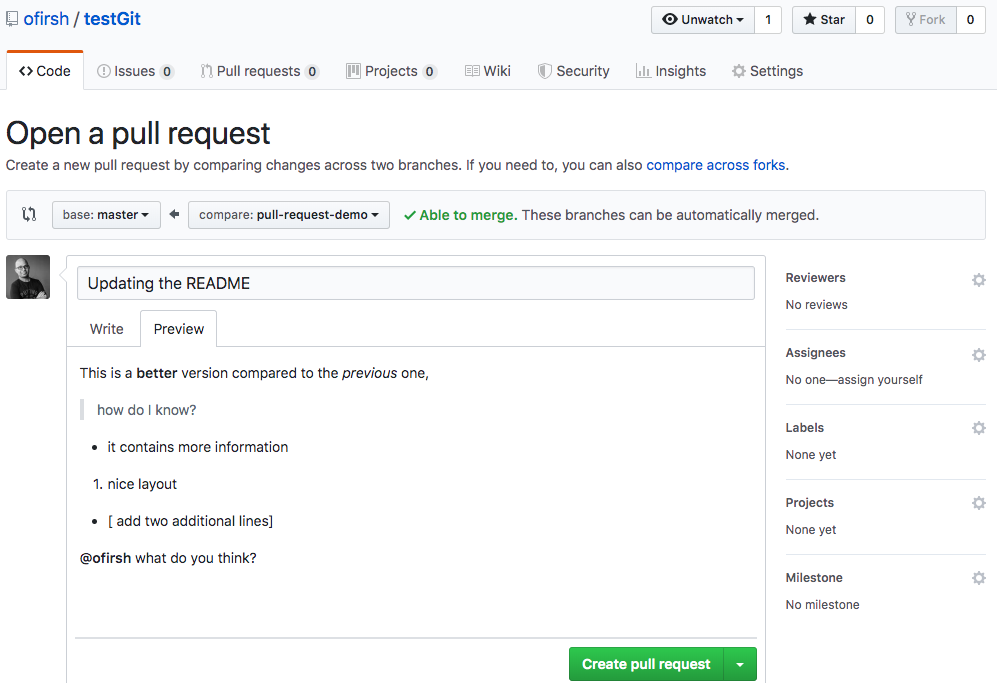
You can press the “Compare”, and now you can create the pull request:

Go ahead and click the big green “Create Pull Request” button. You’ll get a form with space for a title and longer description:

Like most text inputs on GitHub, the description can be written in GitHub Flavored Markdown. Fill it out with a description of your changes. If you especially want a user’s attention in the pull request, you can use the “@username” syntax to mention them (just like on Twitter).

GitHub has a handy guide to writing the perfect pull request that you may want to read before submitting work to other repositories, but for now a description like the one I wrote should be ok. You can see my example pull request here.

Pressing the green “Create pull request”:

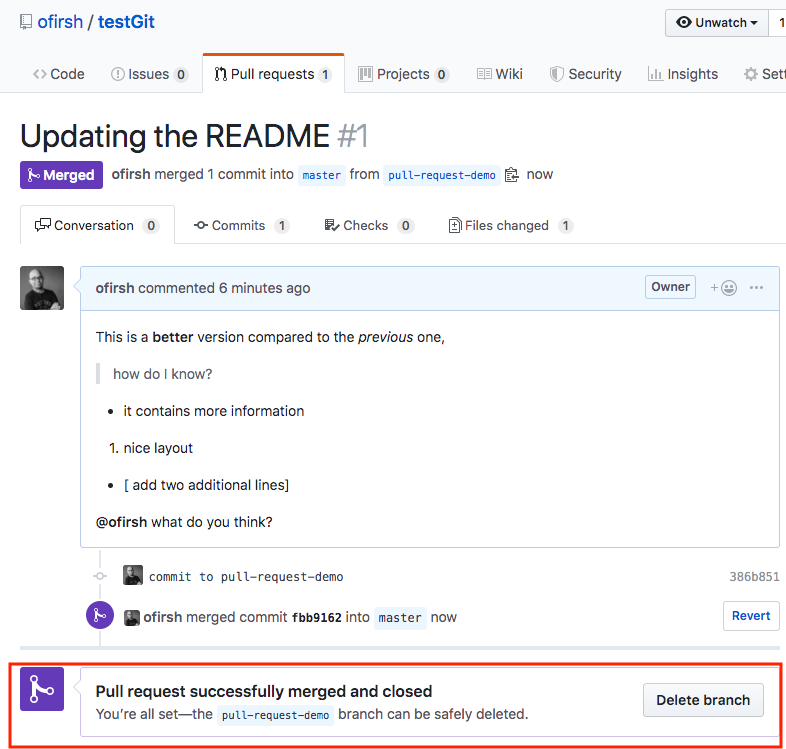
And now, pressing the “Merge pull request” button:

Confirm merge:

Switching you local repo back to master:

git checkout master
git pull origin master

And now the local repo is pointing to master and contains the merged files.

Enjoy!

BTW please find below a nice Git cheat sheet

References:

Learn the Basics of Git in Under 10 Minutes

Pull Request Tutorial

Submitting a Pull Request on GitHub

Modify the Shell Path in OSX to Access adb Through Terminal

The shell path for a user in OSX is a set of locations in the filing system whereby the user can use certain applications, commands and programs without the need to specify the full path to that command or program in the Terminal. This will work in all OSX operating systems.

You can find out whats in your path by launching Terminal in Applications/Utilities and entering:

echo $PATH

Adding in a Permanent Location

To make the new path stick permanently you need to create a .bash_profile file in your home directory and set the path there. This file control various Terminal environment preferences including the path.

nano  ~/.bash_profile

Create the .bash_profile file with a command line editor called nano

export PATH="/Users/ofir/Library/Android/sdk/platform-tools:$PATH"

Add in the above line which declares the new location /Users/ofir/Library/Android/sdk/platform-tools as well as the original path declared as $PATH.

So now when the Terminal is relaunched or a new window made and you check the the path by

echo $PATH

You will get the new path at the front followed by the default path locations, all the time

/Users/ofir/Library/Android/sdk/platform-tools:/usr/local/bin:/usr/bin:/bin:/usr/sbin:/sbin:/opt/X11/bin:/usr/local/git/bin